

How To Create Virtual Environment In Jupyter Notebook
Create Virtual Environment using "virtualenv" and add it to Jupyter Notebook
Are you a Machine Learning Engineer and working with Python and Jupyter Notebook? In this article, you will see why Virtual Environment is needed, the difference between some existing tools and how to add a virtual environment to Jupyter Notebook.

Here is the article outline:
- Why need Virtual Environment?
- What is the difference between
virtualenv,virtualenvwrapper,penvandvenv? - Create a Virtual Environment using
virtualenv - Add Virtual Environment to Juypter Notebook
Why need Virtual Environment?
Like other programming language, Python has its own way of downloading, storing and resolving packages (or libraries). By default, every Python project on your machine will use the default Python site-packages directory (Which is associated with the main Python installation and is represented as base(root) environment). You can find that by:
          >>> import site
>>> site.getsitepackages()
['/Users/admin/anaconda3/lib/python3.7/site-packages']
Imagine a scenario where you are working on t wo machine learning projects and one of them uses TensorFlow v1.5 and the other uses TensorFlow v2. This would be a real problem since Python can't differentiate between versions in the site-packages directory. Both TensorFlow v1.5 and TensorFlow v2 would reside in the same directory with the same name. Since there is no differentiation between versions, both projects would be required to use the same version, which is unacceptable in this case. This is where virtual environments tools come into play.
The main purpose of Python virtual environments is to create an isolated environment for Python projects. Each project can have its own dependencies, regardless of what dependencies every other project has.
In addition, a virtual environment is also useful when you need to work on a shared system and do not have permission to install packages as you will be able to install them in the virtual environment.
Here are some popular libraries/tools for you to create virtual environment in Python: virtualenv, virtualenvwrapper, pvenv and venv.
If you are interested on using conda to create virtual environment, you can take a look:
What is the difference between virtualenv, virtualenvwrapper, pvenv and venv?
-
virtualenv: is the most popular library to create isolated Python environment. You can get it by runningpip install virtualenv. It works by making an exact copy of your Python interpreter binary (thepythonorpython3) in a local directory. Activating an environment is done by modifying thePATHenvironment variable to prefix it with a custom bin directory. -
virtualenvwrapper: is a set of extension tovirtualenv. It gives you commands likemkvirtualenv,lssitepackages, and especiallyworkonfor switching between differentvirtualenvdirectories. This tool is very useful if you want multiplevirtualenvdirectories. -
pyvenv: is a library shipped with Python 3, but depreciated in Python 3.6 because it had problems. -
venv: is a library shipped with Python 3.3+. You can run usingpython3 -m venv <path_to_new_env>.It serves the same purpose asvirtualenv, and additionally you can extend it.
virtualenv continues to be more popular than venv, especially since the former supports both Python 2 and 3. The general recommendation for beginners is that start by learning virtualenv and pip, which work both Python 2 and 3. And in a variety of situations, pick up other tools once you start needing them.
Create a Virtual Environment using "virtualenv"
Install the virtualenv
Check if you have virtualenv
which virtualenv If no, enter the following in your terminal to install it.
pip install virtualenv Create a virtual environment
To create a virtual environment in the current directory:
virtualenv <my_env_name> Here is an example to create a virtual environment "nlp" in the current directory "/Users/admin/Code/WorkSpace/python-venv/".
          ⇒  virtualenv            nlp
Using base prefix '/Users/admin/anaconda3'
New python executable in /Users/admin/Code/WorkSpace/python-venv/nlp/bin/python
Installing setuptools, pip, wheel...          done.
Create an environment with a specific version of Python
You can also use the Python interpreter of your choice (like python2.7).
virtualenv -p /usr/bin/python2.7 <my_env_name> Create an environment from a requirements.txt file
Typically the steps you always take are:
-
virtualenv <my_env_name>to create a new environment -
source <my_env_name>/bin/activateto activate the new environment -
pip install -r requirements.txtto install the requirements in the current environment
Alternative, you can consider using pipenv, which combines pip and virtualenv.
Activate the virtual environment
You can activate the virtual environment by running the following command:
source <my_env_name>/bin/activate Here is an example to activate the "nlp":
          ⇒  pwd
/Users/admin/Code/WorkSpace/python-venv          ⇒            source nlp/bin/activate                    ⇒  which python
/Users/admin/Code/WorkSpace/python-venv/nlp/bin/python
Deactivate the virtual environment
To deactivate the current environment you can type:
deactivate Check which Environment you are in
You can verify quickly you are in the environment by running which python or which pip which will return the path of the python executable in the environment if all went well:
          ⇒  which python
/Users/admin/Code/WorkSpace/python-venv/nlp/bin/python          ⇒  which pip
/Users/admin/Code/WorkSpace/python-venv/nlp/bin/pip
Remove an environment
To remove an environment, make sure you have deactivated it, then cd into the environment directory and type
sudo rm -rf <my_env_name> Add Virtual Environment to Jupyter Notebook
Makes sure that the IPython kernel is available, but you have to manually add a kernel with a different version of Python or a virtual environment.
First, you need to activate your virtual environment.
Next, install ipykernel which provides the IPython kernel for Jupyter:
Then, you can add your virtual environment to Jupyter by typing:
python -m ipykernel install --user --name=<my_env_name> For example: add virtual environment "nlp" to Jupyter and it should print the following:
          ⇒  python -m ipykernel install --user --name=nlp
Installed kernelspec nlp in /Users/admin/Library/Jupyter/kernels/nlp
After that, you could cd into the env folder and inspect the configuration file kernel.json
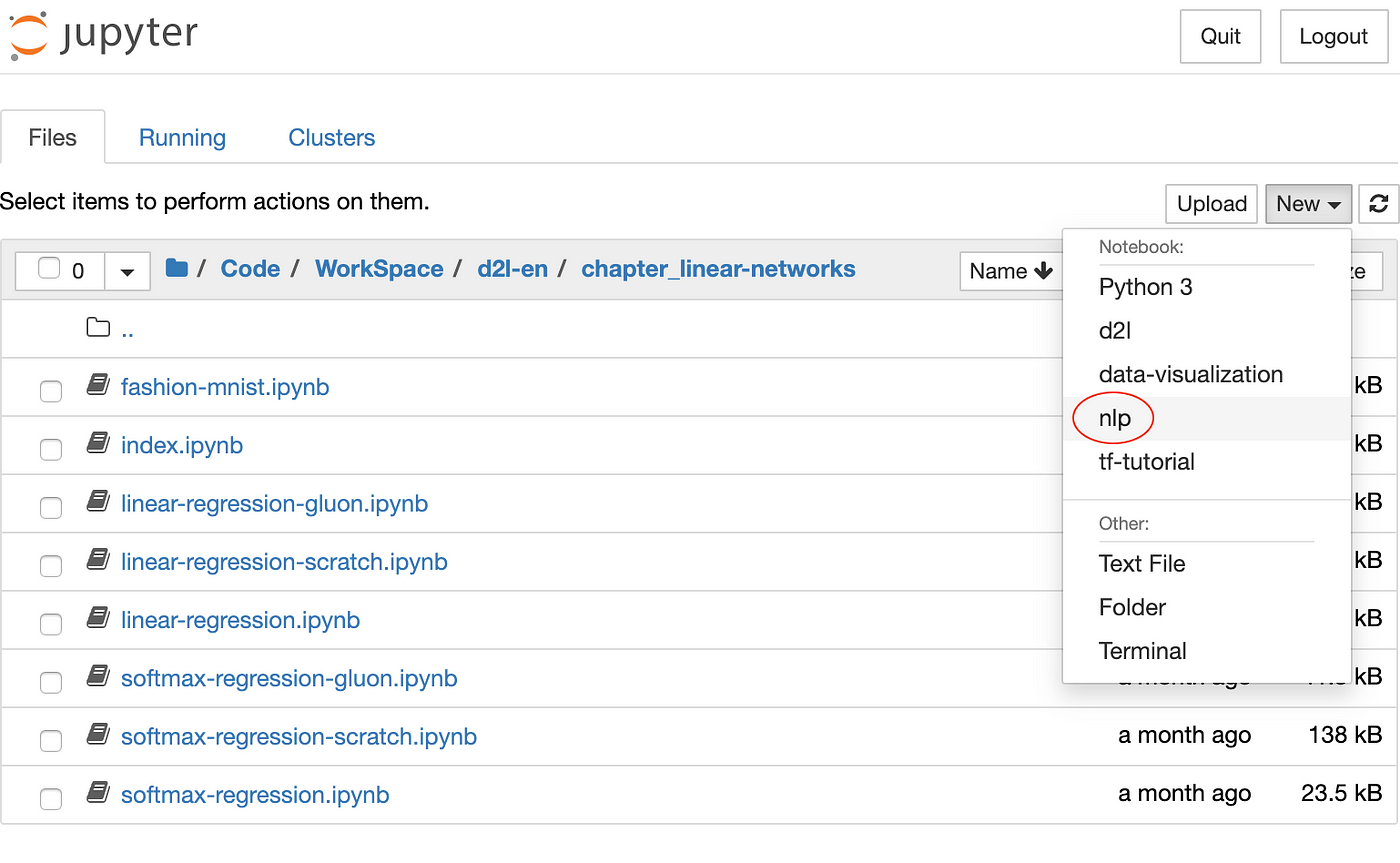
Now you are able to choose the environment as a kernel in Jupyter Notebook. Here is what that would look like:

Remove Virtual Environment from Jupyter Notebook
After you deleted your virtual environment, you'll want to remove it also from Jupyter. Let's first see which kernels are available. You can list them with:
          ⇒  jupyter kernelspec list
Available kernels:
            d2l        /Users/admin/Library/Jupyter/kernels/d2l
            nlp        /Users/admin/Library/Jupyter/kernels/nlp
            ...
Now, to uninstall the kernel, you can type:
jupyter kernelspec uninstall <my_env_name> Enjoy!
And that's about it. Thanks for reading.
How To Create Virtual Environment In Jupyter Notebook
Source: https://towardsdatascience.com/create-virtual-environment-using-virtualenv-and-add-it-to-jupyter-notebook-6e1bf4e03415
Posted by: ricetheessale.blogspot.com
0 Response to "How To Create Virtual Environment In Jupyter Notebook"
Post a Comment